
-
Step 1
Open the 3D viewer
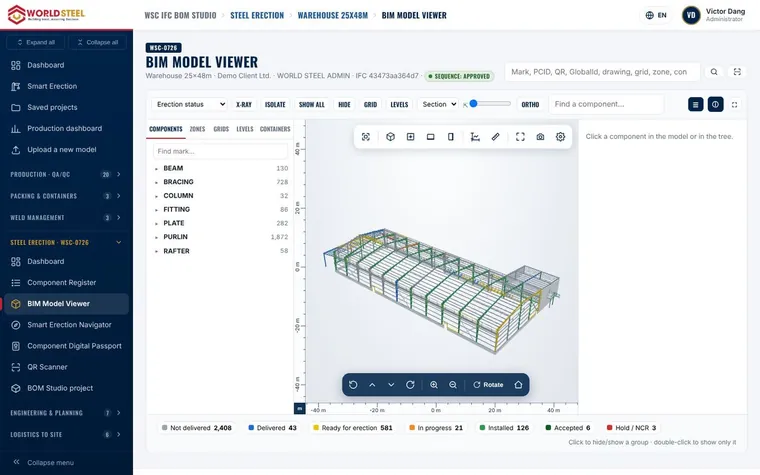
From the model or project page, open 3D model. Large models are compressed (e.g. 46 → 4 MB) so they load quickly.
-
Step 2
Navigate
Drag to rotate, scroll to zoom and right-drag to pan. Use the toolbar for top, front and side views.
-
Step 3
Find a component
Type a mark in the search box: the camera flies to the component and highlights it.
-
Step 4
Change the colour mode
Colour by fabrication stage, erection status, zone or container to understand progress at a glance.
-
Step 5
Isolate, X-ray and section
Isolate a selection, switch on X-ray or cut sections by grid or elevation. Take a screenshot for reports.
Was this guide helpful?
Thank you for your feedback!
Updated 01 Nov 2026