
One screen shows the whole picture: system indicators, recent projects and a drop zone for new models.
-
Step 1
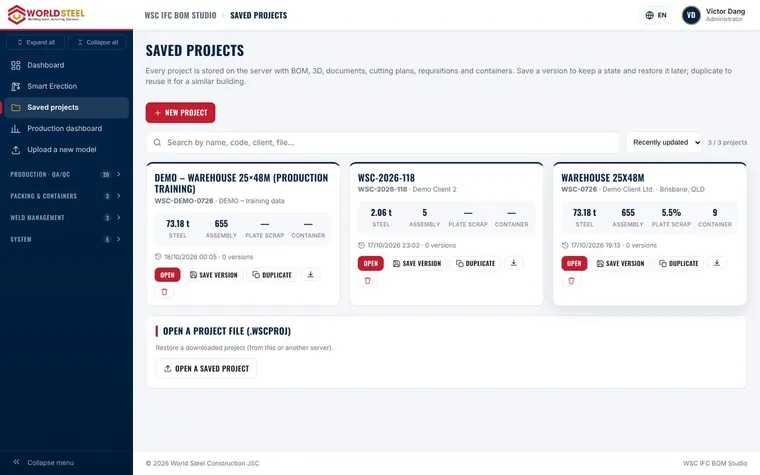
Use the grouped menu
The left-hand menu is grouped by module: Project, Production · QA/QC, Weld Management, Packing & Containers, Smart Erection and System. Click a group title to open or close it.
-
Step 2
Expand or collapse everything
Use Expand all / Collapse all at the top of the menu, or collapse the menu to icons to get more room for tables and 3D.
-
Step 3
Switch language
Use the VI / EN switch in the top bar. Your choice is remembered for your account.
-
Step 4
Work on a phone or tablet
On screens up to 960 px the menu slides out and closes automatically once you select an item — ideal in the workshop or on site.
Was this guide helpful?
Thank you for your feedback!
Updated 01 Nov 2026