
-
Step 1
Scan the label
Open the Smart Erection app on your phone and scan the factory label or the Smart Erection QR.
-
Step 2
Read the digital passport
The passport shows engineering, fabrication, QC, logistics, erection position, inspections, NCRs and photos.
-
Step 3
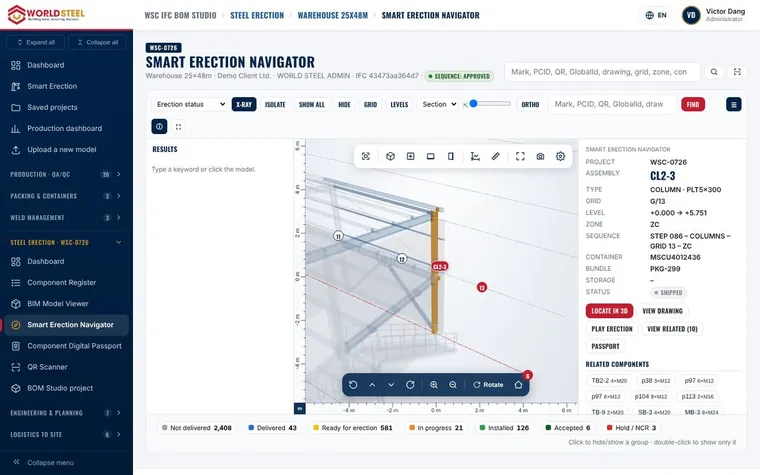
Locate it in the model
Tap Show in model: the camera flies to the location, the component is highlighted in orange and connected members in blue, with grid, elevation, step and container.
-
Step 4
Update the status
Mark the component as delivered, ready for erection, in progress or installed. Only authorised QC can accept it.
Tip QR labels carry no permissions: people who are not signed in only see a read-only passport, if your project allows it. -
Step 5
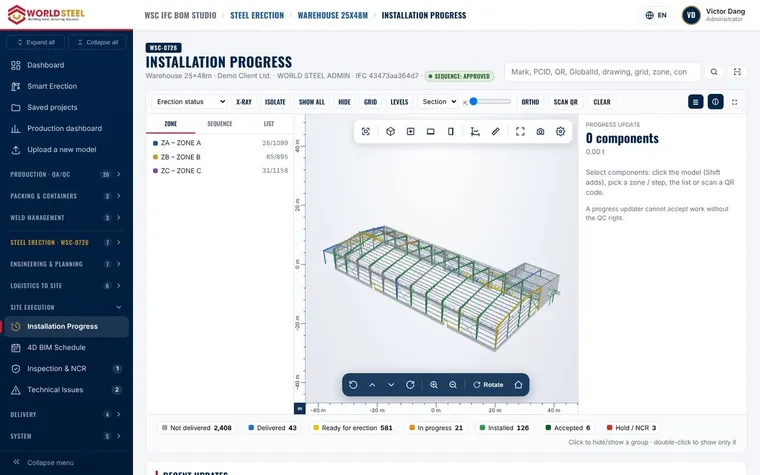
Follow progress
Open Installation progress to see zones, sequence and live status of every component.
Was this guide helpful?
Thank you for your feedback!
Updated 01 Nov 2026